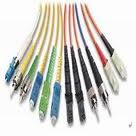
Berikut ini beberapa perangkat jaringan komputer beserta fungsinya
yang saya saring dari e-dukasi.net, semoga
bermanfaat
Komputer Server adalah suatu unit komputer yang berfungsi
untuk menyimpan informasi dan untuk mengelola suatu jaringan komputer. komputer
Server akan melayani seluruh client atau workstation yang terhubung ke
jaringannya.
Terdapat tiga Macam macam server antara lain yaitu :
Terdapat tiga Macam macam server antara lain yaitu :
Server Web
Server Web adalah perangkat lunak yang melayani permintaan file-file dari browser Web. Server web biasanya disebut juga sebagai HTTP (Hypertext Transfer Protocol ) sever .
Server Web adalah perangkat lunak yang melayani permintaan file-file dari browser Web. Server web biasanya disebut juga sebagai HTTP (Hypertext Transfer Protocol ) sever .
Server Applikasi
Server Applikasi adalah perangkat lunak yang berfungsi menerjemahkan kode-kode dinamis menjadi kode-kode statis HTML (Hypertext Markup Language )
Server Applikasi adalah perangkat lunak yang berfungsi menerjemahkan kode-kode dinamis menjadi kode-kode statis HTML (Hypertext Markup Language )
Server Database
Server Database adalah peangkat lunak yang berfungsi mengolah data yang diminta oleh server applikasi. Untuk membuat applikasi web berbasiskan database, komputer atau sistem jaringan harus memiliki paling tidak satu buah sistem database. Jenis database yang bisa digunakan antara lain misalnya: Ms Access, SQL Server, Oracle atau MySQL.
Server Database adalah peangkat lunak yang berfungsi mengolah data yang diminta oleh server applikasi. Untuk membuat applikasi web berbasiskan database, komputer atau sistem jaringan harus memiliki paling tidak satu buah sistem database. Jenis database yang bisa digunakan antara lain misalnya: Ms Access, SQL Server, Oracle atau MySQL.
Komputer Client adalah seperangkat komputer yang memungkinkan
pengguna untuk mengakses servis atau layanan dari komputer server. Istilah
Komputer Client bisa di sebut dengan Workstation atau Node
Kartu Jaringan
Kartu Jaringan atau disebut dengan istilah NIC (Network Interface
Card) atau LAN CARD atau Etherned Card. merupakan perangkat yang menyediakan
media untuk menghubungkan antar komputer. Kebanyakan Kartu Jaringan berjenis
kartu internal, yaitu kartu jaringan yang di pasang pada slot ekspansi di dalam
komputer.
Kartu jaringan ada di dalam komputer client dan komputer server
agar dapat di jalankan dalam jaringan. Kartu Jaringan memiliki dua fungsi utama
, yaitu:
1. Peranti yang menyambungkan kabel jaringan dengan komputer.
2. Peranti yang menyediakan pengalamatan secara fisik. Artinya kartu jaringan memiliki kode tertentu yang unik .
1. Peranti yang menyambungkan kabel jaringan dengan komputer.
2. Peranti yang menyediakan pengalamatan secara fisik. Artinya kartu jaringan memiliki kode tertentu yang unik .
Kabel Jaringan
Kamu dapat membangun jaringan komputer (baik jaringan sederhana
maupun besar) menggunakan berbagai tipe media transmisi. Media transmisi dapat
diklasifikasikan menjadi dua kategori, yaitu terarah (guieded/wireline) atau
menggunakan kabel atau tidak terarah (unguided/wireless) atau nirkabel. Media
Transmisi terarah merupakan gelombang elektromagnetik yang di pandu sepanjang
fisik, misalnya: Kabel UTP, Kabel Coaxial dan Kabel Fiber Optik. Sedangkan
Media Transmisi elektromagnetik tanpa di pandu, misalnya perambatan melalui
udara, ruang hampa dan air laut.
Jenis-jenis Jaringan yang akan kita bahas yaitu:
1, Kabel UTP
Kabel UTP ( Unshielded Twisted Pair ), secara Fisik terdiri atas
empat pasang kawat medium, setiap pasang di pisahkan oleh lapisan pelindung.
Kabel UTP mempunyai beberapa karakteristik, yaitu:
Kabel UTP mempunyai beberapa karakteristik, yaitu:
Kecepatan dan keluaran 10 - 100 Mbps
Biaya rata-rata per node murah.
Media dan ukuran konektor kecil
Panjang Kabel maksimal yang diizinkan yaitu 100 meter (pendek).
Kabel UTP mempunyai banyak keunggulan, selain itu mudah dipasang,
ukurannya kecil dan harganya lebih murah dibandingkan media lain. Kekurangan
kabel UTP yaitu rentan efek interferensi elektromagnetic yang berasal dari
media atau perangkat lainnya. Akan tetapi, pada prakteknya pada administrator
jaringan banyak menggunakan kabel ini sebagai media yang efektif dan dapat
diandalkan.
Kabel UTP terdiri dari delapan Pin Warna (seperti gambar
disamping). Dimana terdapat dua tipe kabel yang umum, yaitu kabel straight-through digunakan
untuk menghubungkan sebuah hub dgn switch dan kabel cross-over digunakan untuk
menghubungkan dua buah komputer secara peer to peet tanpa hub dan switch.
2. Kabel Koaksial
Kabel koasial terdiri atas konduktur silindris melingkar yang mengelilingi
sebuah kabel tembaga inti yang konduktif. Kabel koaksial dapat di gunakan tanpa
banyak membutuhkan bantuan repeatersebagai penguat untuk komunikasi
jarak jauh.
Kabel koaksial memiliki ukuran beragam. Diameter yang besar memilik transmisi panjang dan menolak noise. Nama Lain dari Kabel ini adalah "thicknet". Kabel ini sangat popular untuk LAN karena memiliki bandwith yang lebar, sehingga dapat Anda gunakan untuk komunikasi broadband (multiple channel). Contoh kabel koaksial dalam kehidupan sehari-hari yaitu: kabel tv, thin10Base5 yang biasanya digunakan untuk kabel backbone pada instalasi jaringan antar gedung.
Kabel koaksial mempunyai beberapa karakteristik, yaitu :
Kabel koaksial memiliki ukuran beragam. Diameter yang besar memilik transmisi panjang dan menolak noise. Nama Lain dari Kabel ini adalah "thicknet". Kabel ini sangat popular untuk LAN karena memiliki bandwith yang lebar, sehingga dapat Anda gunakan untuk komunikasi broadband (multiple channel). Contoh kabel koaksial dalam kehidupan sehari-hari yaitu: kabel tv, thin10Base5 yang biasanya digunakan untuk kabel backbone pada instalasi jaringan antar gedung.
Kabel koaksial mempunyai beberapa karakteristik, yaitu :
Kecepatan dan keluaran 10 - 100 MBps
Biaya Rata-rata per node murah
Media dan ukuran konektor medium
Panjang kabel maksimal yang di izinkan yaitu 500 meter (medium)
Jaringan dengan menggunakan kabel koaksial merupakan jaringan dengan biaya rendah, tetapi jangkauannya sangat terbatas dan keandalannya juga sangat terbatas. Kabel koaksial pada umumnya digunakan pada topologi bus dan ring.
3. Kabel Fiber Optik
Jenis kabel fiber optic merupakan kabel jaringan yang jarang
digunakan pada instalasi jaringan tingkat menengah ke bawah. Pada umumnya,
kabel jenis ini digunakan pada instalasi jaringan yang besar dan pada
perusahaan multinasional serta digunakan untuk antar lantai atau antar gedung.
Kabel fiber optic merupakan media networking medium yang digunakan utk transmisi-transmisi modulasi. Fiber Optic harganya lebih mahal di bandingkan media lain.
Beberapa keuntungan menggunakan kabel fiber optic , yaitu :
Kabel fiber optic merupakan media networking medium yang digunakan utk transmisi-transmisi modulasi. Fiber Optic harganya lebih mahal di bandingkan media lain.
Beberapa keuntungan menggunakan kabel fiber optic , yaitu :
Kecepatan jaringan fiber optic beroperasi pada kecepatan tinggi.
Bandwith, Fiber optic mampu membawa paket-paket dengan kapasitas
besar.
Distance yaitu sinyal-sinyal dapat di transmisikan lebih jauh
tanpa memerlukan perlakuan "refresh" atau "diperkuat"
Kabel-kabel fiber optic membutuhkan biaya alternatif murah
Fiber Optic mempunyai beberapa karakteristik, yaitu:
Kecepatan dan keluaran 100+ Mbps
Biaya rata-rata pernode cukup mahal
Media dan ukuran konektor kecil
Panjang kabel maksimal yang diizinkan yaitu 2 km (panjang)
Connector
Connector adalah Perangkat keras yang digunakan untuk menghubungkan kabel dengan komputer , untuk jaringan komputer dikenal dengan Istilah RJ45 yang merupakan konektor standar untuk kabel Ethernet Categori 5, serta biasanya digunakan untuk Kabel UTP.
Connector adalah Perangkat keras yang digunakan untuk menghubungkan kabel dengan komputer , untuk jaringan komputer dikenal dengan Istilah RJ45 yang merupakan konektor standar untuk kabel Ethernet Categori 5, serta biasanya digunakan untuk Kabel UTP.
HUB
Hub atau konsentrator adalah sebuah perangkat yang menyatukan
kabel-kabel jaringan dari tiap-tiap workstation, server, atau perangkat lain.
Keuntungan mengunakan hub adalah fleksibelitas yang dimiliki, sehingga setiap
client dapat ditambahkan setiap waktu tanpa menganggu jaringan yang sedang
beroperasi.
Akan tetapi hub tidak mampu membaca data dan tidak mengetahui sumber dari tujuan paket-paket yang dilepaskan melalui Hub tersebut.
Akan tetapi hub tidak mampu membaca data dan tidak mengetahui sumber dari tujuan paket-paket yang dilepaskan melalui Hub tersebut.
Router
Router, digunakan untuk menyambung 2 jaringan yang berbeda.
Sebagai contohnya, untuk menyambungkan antara LAN dengan Internet diperlukan
adanya router sebagai jembatan dari 2 jaringan tersebut. Bisa juga untuk menyambung
antara LAN yang berbeda subnet.
Salah satu contoh router adalah Cisco Router.
Switch
Biasanya switch banyak digunakan untuk jaringan LAN. Sebagai
penghubung antara komputer. Switch ada yang menggunakan kabel, ada yang tanpa
kabel atau wireless.
jangan bosan belajar
 Ternyata kita bisa belajar dari orang yang kerajingan main game, terutama game MMORPG (Massively Multiplayer Online Role-Playing Game) yang menggunakan PC.